
QuietLook
macOS
Your previews. Your volume.
Keep the sound setting you choose in Finder's Space-bar Quick Look previews. Start muted, then remember your preferred mute or volume when you close a preview, switch files, or sign in again.
Get QuietLookNative Quick Look helper
macOS 26+
Signed and notarized
App-specific Accessibility
No audio recording
Inside the app.
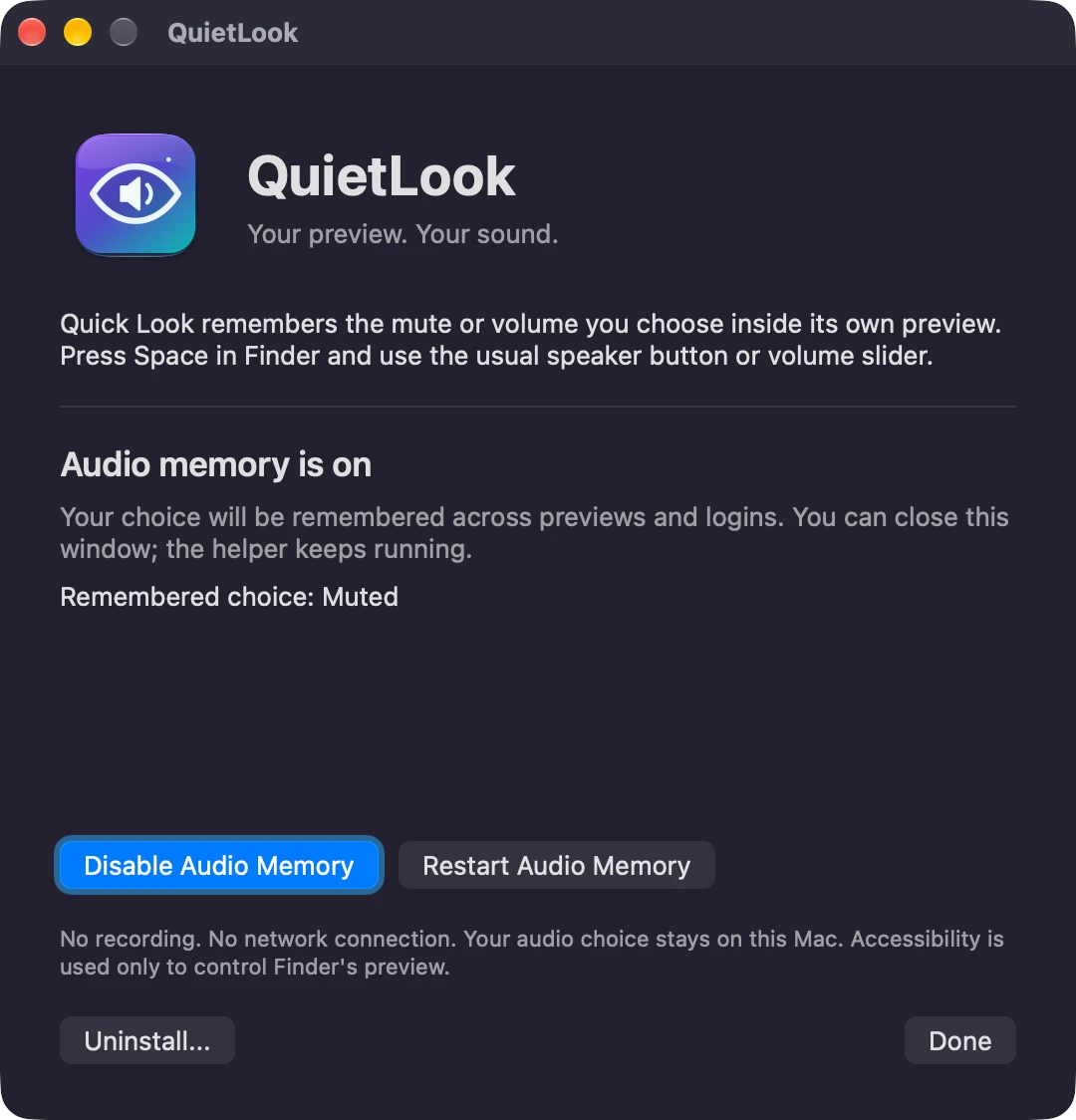
Press Space. Keep your sound choice.
01
Preview as usual
Select a video in Finder and press Space. QuietLook starts with a muted preference on first installation.
02
Set the sound
Use the native speaker button or slider. Choose silence or an audible volume; both are remembered.
03
Move to the next file
Your choice is restored as the next preview's controls appear, including after closing Finder previews or signing in again.
Set up once. Stay in control.
01
Move to Applications
Drag QuietLook.app from the disk image into Applications or your own Applications folder. Keep one installed copy.
02
Allow Accessibility
Open QuietLook and use its setup button to grant the app access in System Settings. No microphone or screen-recording permission is needed.
03
Enable Audio Memory
Enable the helper in the setup window and approve background execution if macOS asks. Close setup when it reports healthy; the helper keeps running.
Reopen QuietLook to see its status, disable audio memory, restart the helper, or uninstall. Before an update, disable audio memory and quit setup, then replace the same installed copy. Your saved choice stays outside the app.
A small helper. A familiar experience.
Choose with the controls you know
Use Quick Look's own speaker button and volume slider. QuietLook observes your choice rather than replacing the player or overriding an intentional unmute.
Remember the next preview
Your saved choice carries across files, closed previews, and future logins. Unmuting restores the last audible volume, even after sliding all the way to zero.
Leave the rest of your Mac alone
A small native background helper targets Apple's Quick Look service, not your system volume, browser player, music app, or default audio device.
Get QuietLook
A one-time purchase, with installer delivery and recovery through your secure purchase portal.
$4.99
One-time purchase
macOS 26 or later / Apple Silicon and Intel. Applicable taxes are shown at checkout.
Version 1.2.1. Installer downloads are included in your purchase. The current release does not require device activation.
After payment, Polar emails a secure route to your license key and downloads. Already own it? Find your purchases.
A note on your data.
Your mute and volume preferences stay on your Mac. App-specific Accessibility access observes Finder's native preview controls. QuietLook never reads, records, saves, or transmits audio, and has no account, analytics, or network service.
Read the product privacy policyA few useful answers.
macOS 26 or later, with app-specific Accessibility permission for QuietLook. It is a native background helper, not a Finder Sync extension, replacement player, or audio driver. It does not need microphone, screen-recording, or administrator permission.
Open the disk image and drag QuietLook.app into Applications, or your own ~/Applications folder for a per-user installation. Open the app, choose Allow Accessibility, grant QuietLook access in System Settings, then return and choose Enable Audio Memory. Approve background execution in Login Items if macOS asks. No Terminal, Xcode, or Homebrew is needed.
Download updates from your authenticated Polar purchase portal. Before replacing the app, choose Disable Audio Memory and quit its setup window. Replace that same installed copy, reopen it, and enable audio memory again. To remove it, use Uninstall in the app: it unregisters the helper and moves the app to Trash while retaining your saved audio choice and media.
No. Polar keeps your purchase-reference key and signed installers in your customer portal. QuietLook has no mandatory activation, account sign-in, or network connection inside the app. Updates are manual, not an automatic background download.
Quick Look can group its timeline controls. Version 1.2.1 recognizes that layout correctly, fixing an issue where sound could stay guarded after you raised the native volume slider.
Yes. Use the preview's native speaker button or volume slider. QuietLook remembers both audible and muted choices; it is not a permanent forced mute.
The guard targets Apple's Quick Look service. Audio-only previews and other apps using that same service can also be silent while your saved choice is muted; controls in those other hosts are not observed. Separate players and system sounds are not targeted.
No. There can be a brief gap while the helper or macOS audio service starts or restarts. Native controls are restored when they appear; an audible preview can briefly begin at Apple's default volume.
The helper stops remembering and releases its Quick Look-only guard. The native controls remain usable, and an already-muted preview stays muted until you change it. Your saved audio choice is retained for when you turn QuietLook back on.
More from Mantiqo.

New Text File
macOS
The missing little right-click.
Create a text or Markdown file exactly where you need it. A small native Finder extension that puts a Create New submenu where it belongs, without opening an editor or a terminal first.
Finder essentials
Merge Folders
macOS
Scattered folders. One place.
Bring the contents of several folders together from Finder. Review the destination, move the contents into one folder, and keep both files when names collide.
Finder essentials

RepoDeck
macOS / Windows / Linux
All your projects. A clearer perspective.
Bring local folders and GitHub repositories into one project command center. Go from a portfolio-wide view to a focused workspace, with Git changes, resources, guided actions, and runs close at hand.
Developer tools